Before you start
Use a HubSpot Super Admin to connect the integration and create the private app for contact subscriptions. HubSpot requires this role to install an app and access private apps. You do not need to assign a separate set of user permissions for this setup. Julian’s HubSpot subscription watches Contacts. Ampersand lists a Sales Hub seat as an additional requirement only when an integration accesses HubSpot Leads. That requirement does not apply to this contact subscription. Create a contact property for the Agent Identifier. Julian uses its value to choose the agent and workflow for a contact. The property also drives the HubSpot subscription that notifies Julian when its value changes. Select the same contact property in both places. The mapping in Julian tells Julian where to read the Agent Identifier. The subscription in HubSpot tells HubSpot which property change to send to Julian. Both settings must refer to the same property for this trigger to work.Connect HubSpot in Julian
- Open Integrations in Julian. Select Connect beside HubSpot.
- Sign in to the correct HubSpot account as a Super Admin. Complete the authorization screen.
- Open the connected HubSpot integration in Julian.
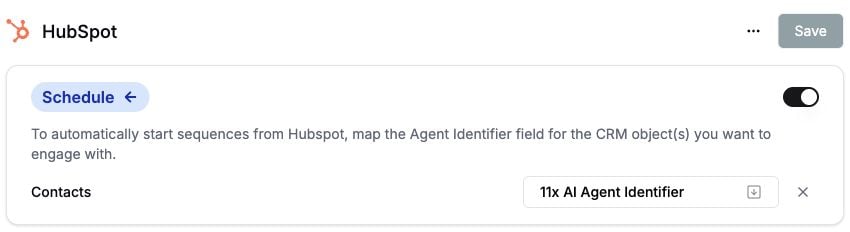
- Under Schedule, map the HubSpot contact property that contains the Agent Identifier.
- Under Push, enable writing if your workflows will update HubSpot records or log call results.
Subscribe to contact changes
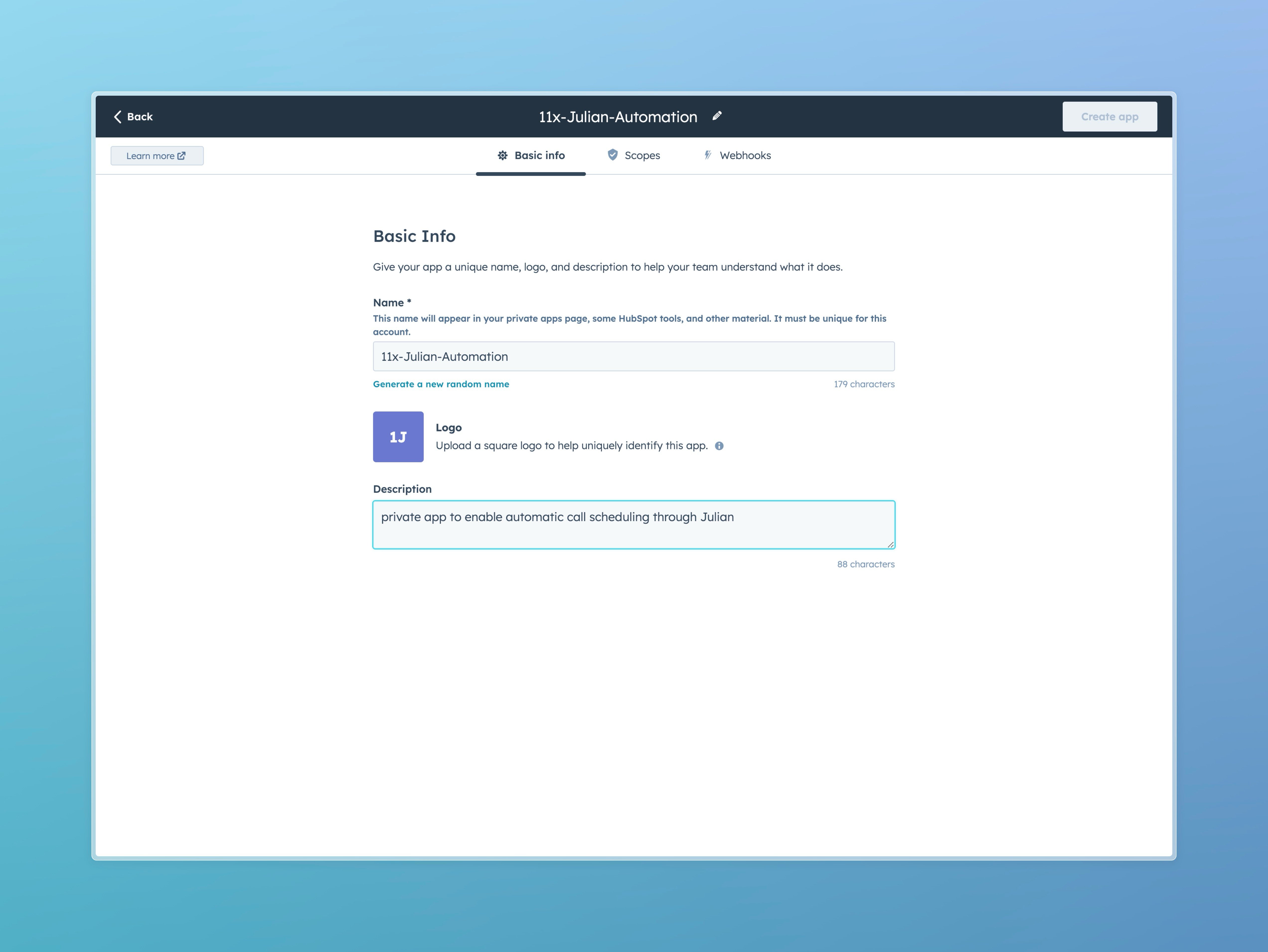
Create the private app
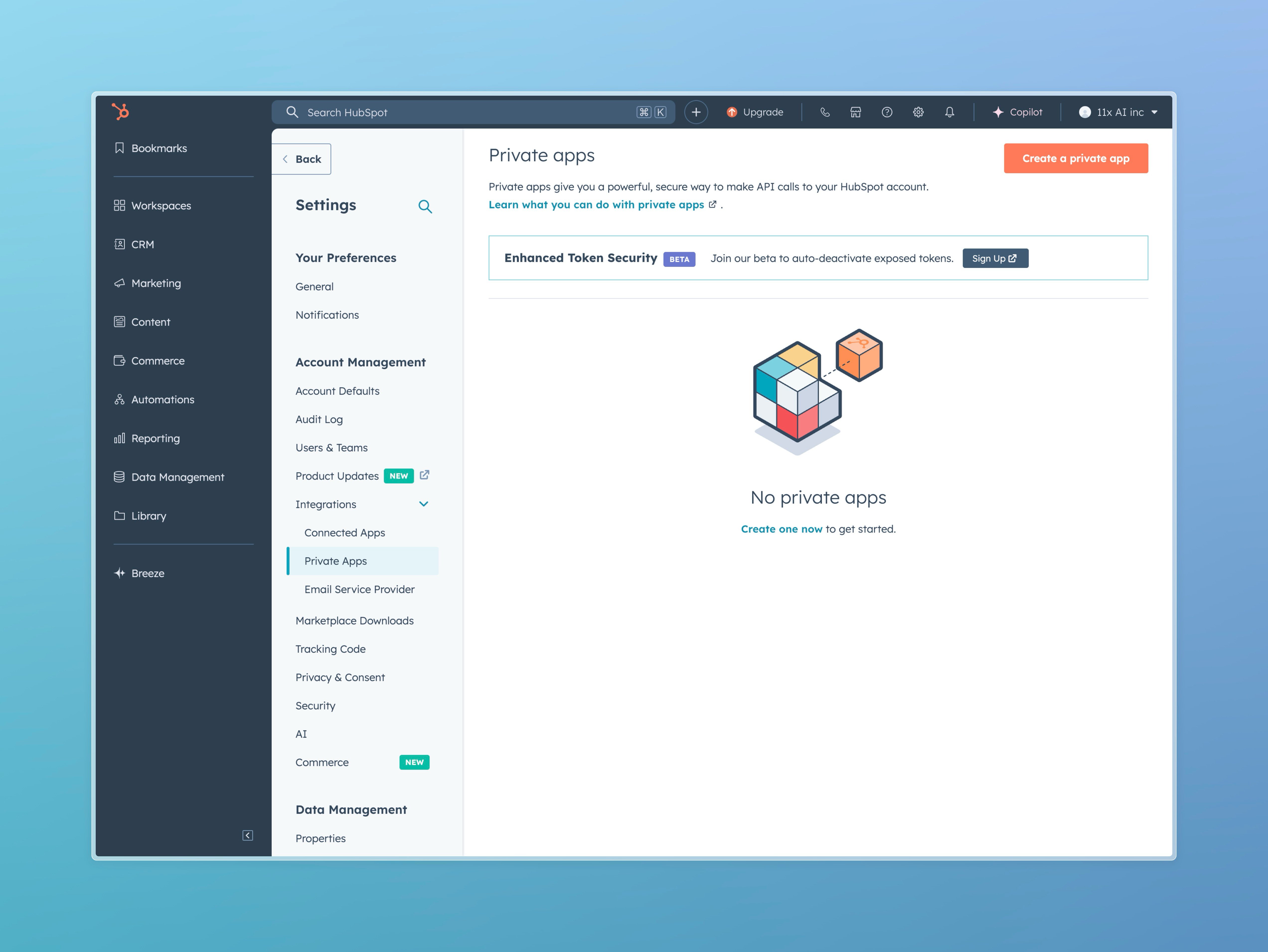
- In HubSpot, open Settings → Integrations → Private Apps. Select Create a private app.
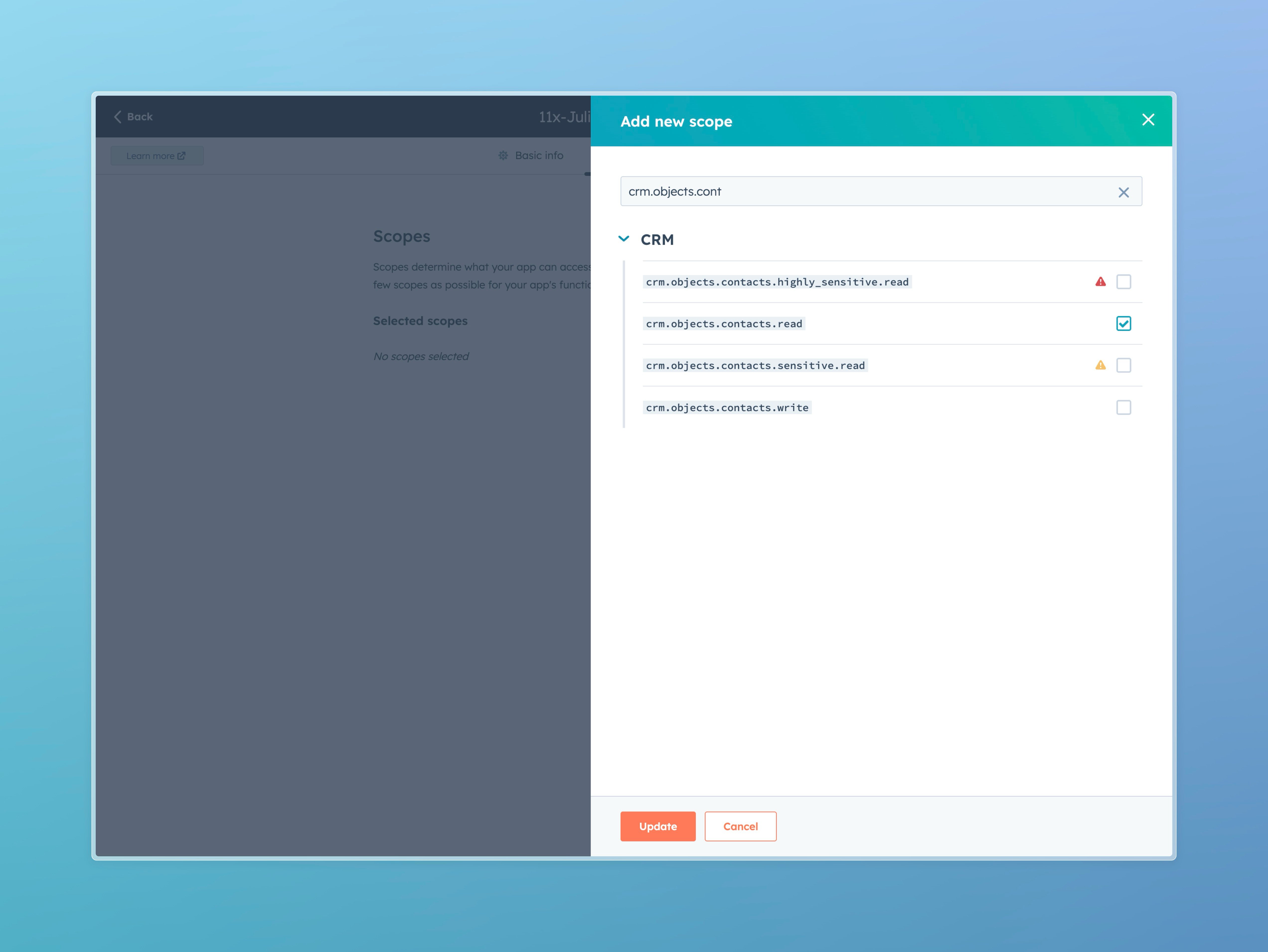
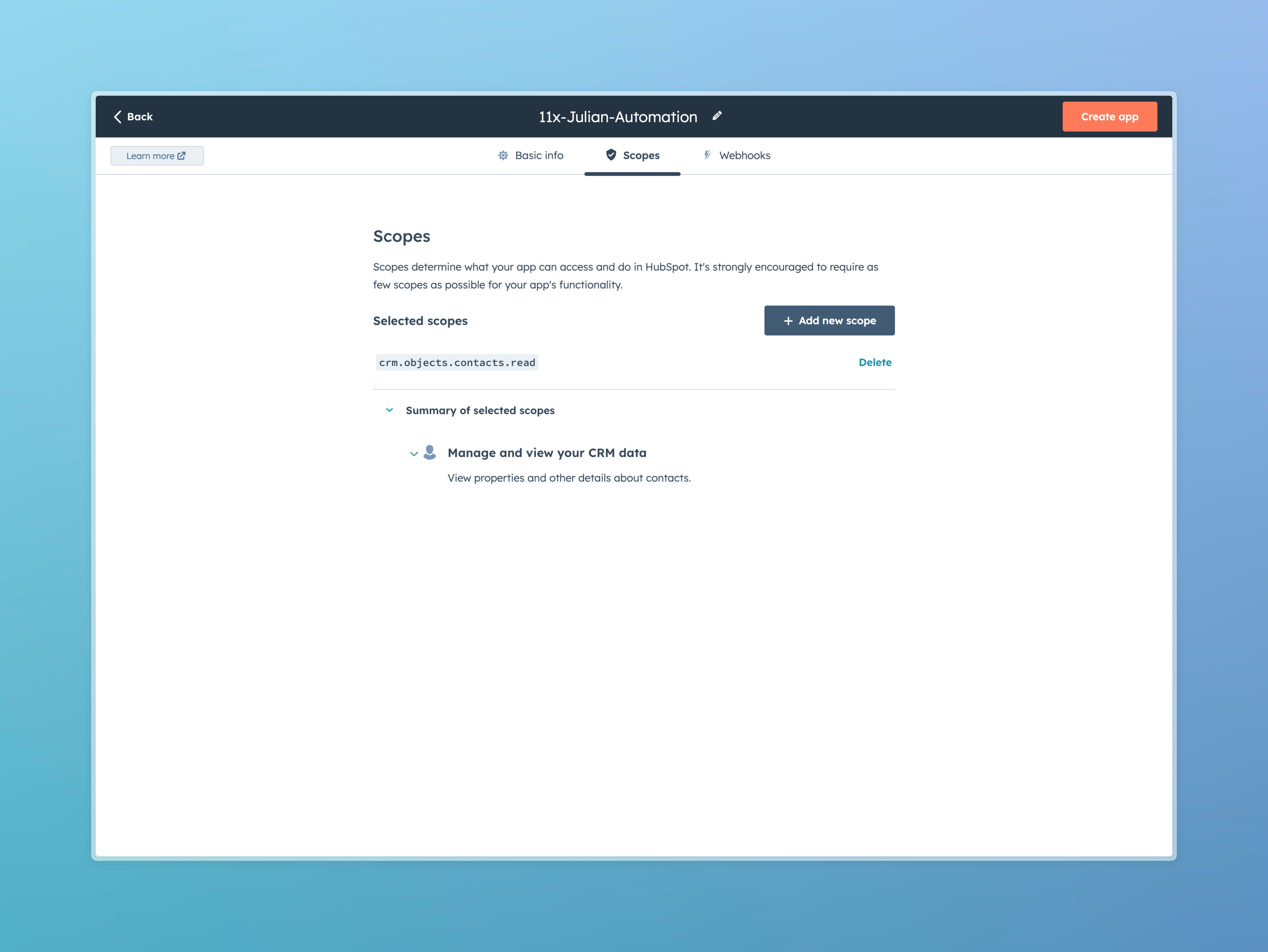
- Name the app for Julian. Under Scopes, select
crm.objects.contacts.read.
Set the webhook target
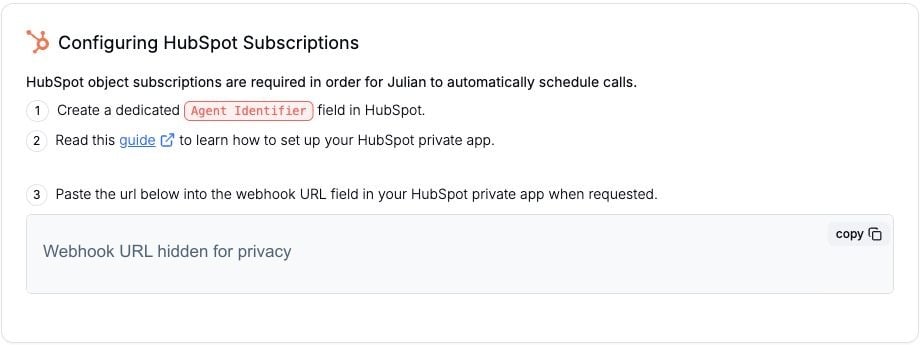
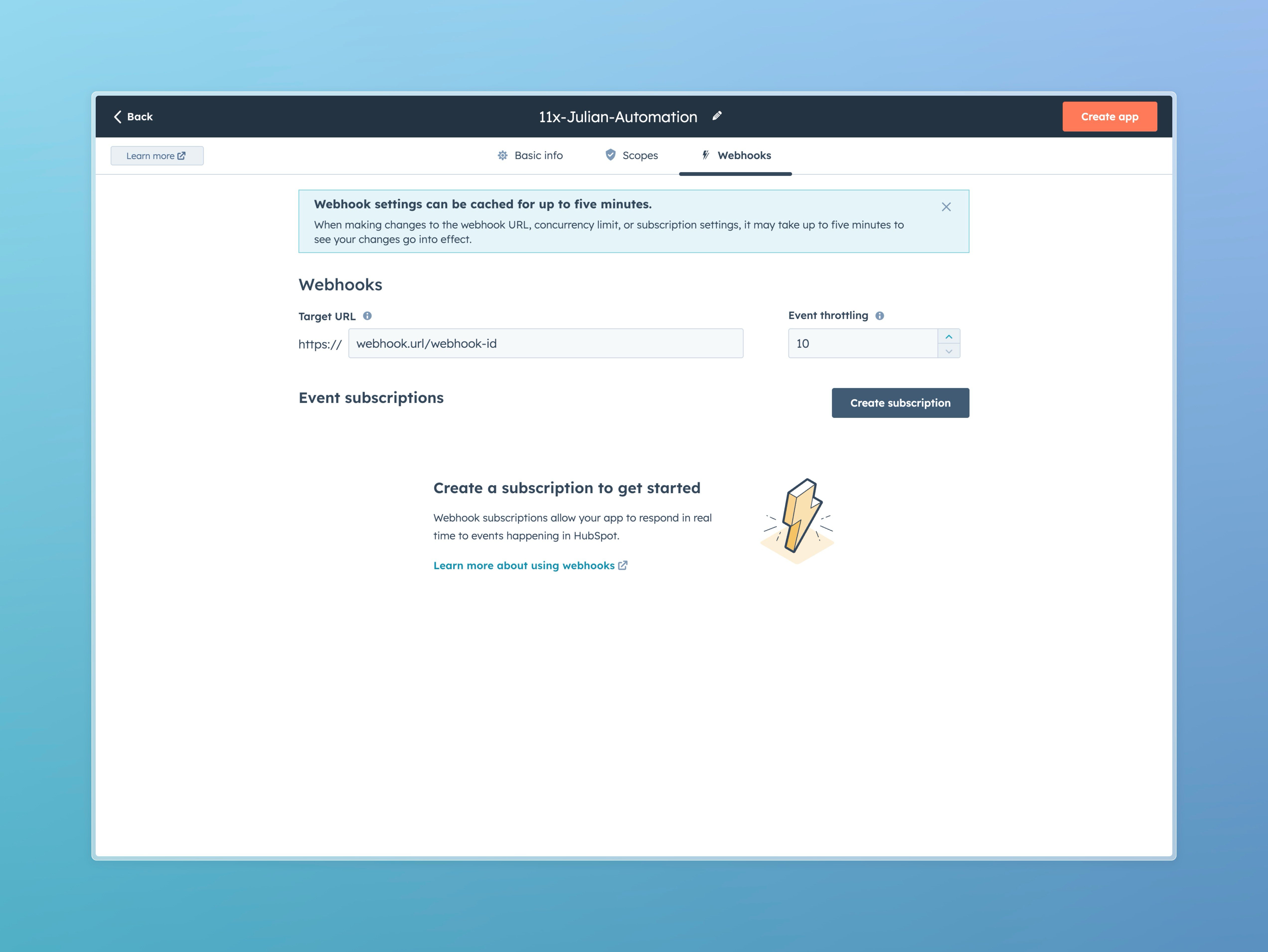
- In Julian, open the connected HubSpot integration. Copy the Webhook URL from Configuring HubSpot Subscriptions.
- In the HubSpot private app, open Webhooks. Paste the URL into the Target URL field.
Watch the Agent Identifier property
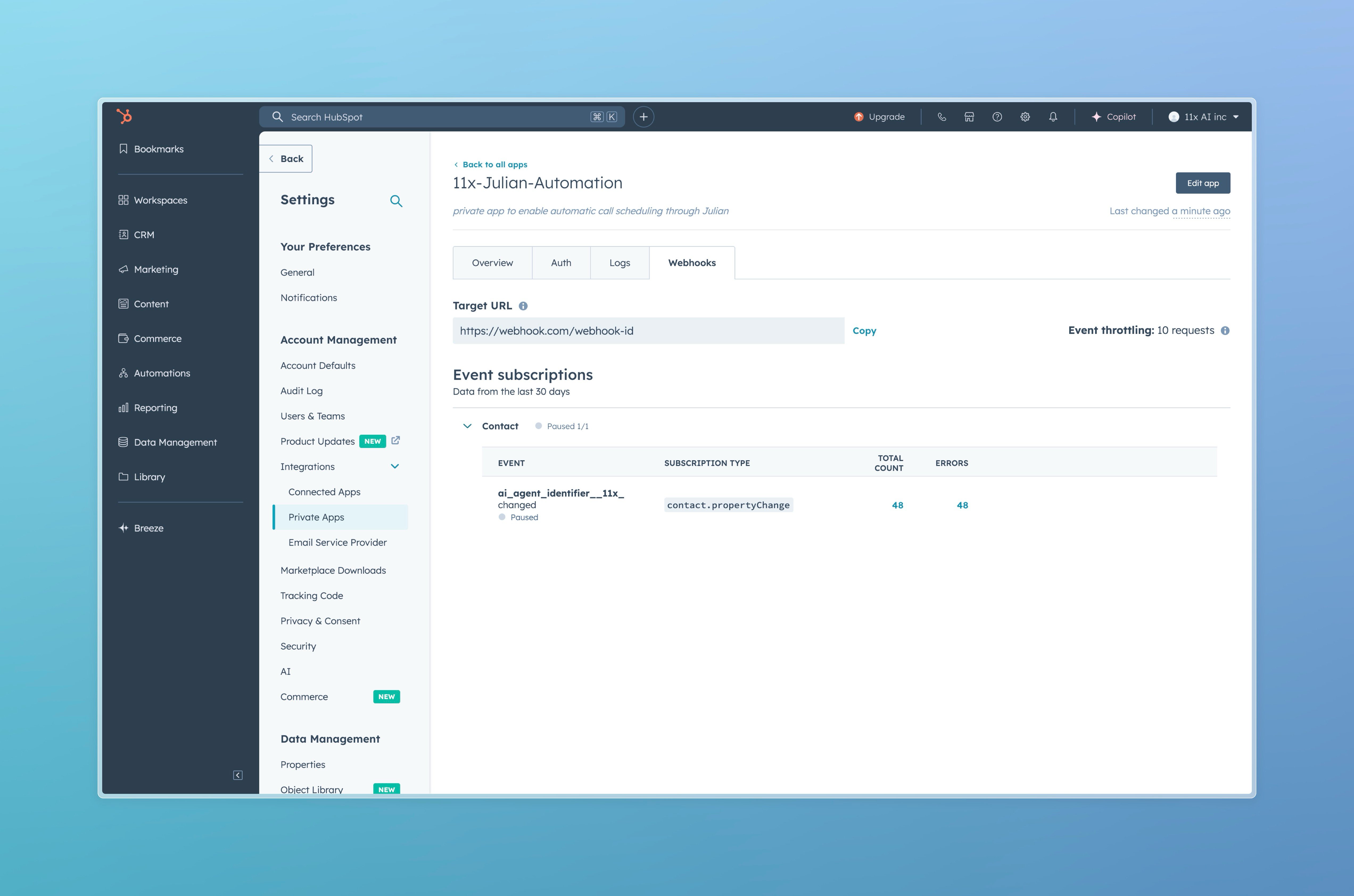
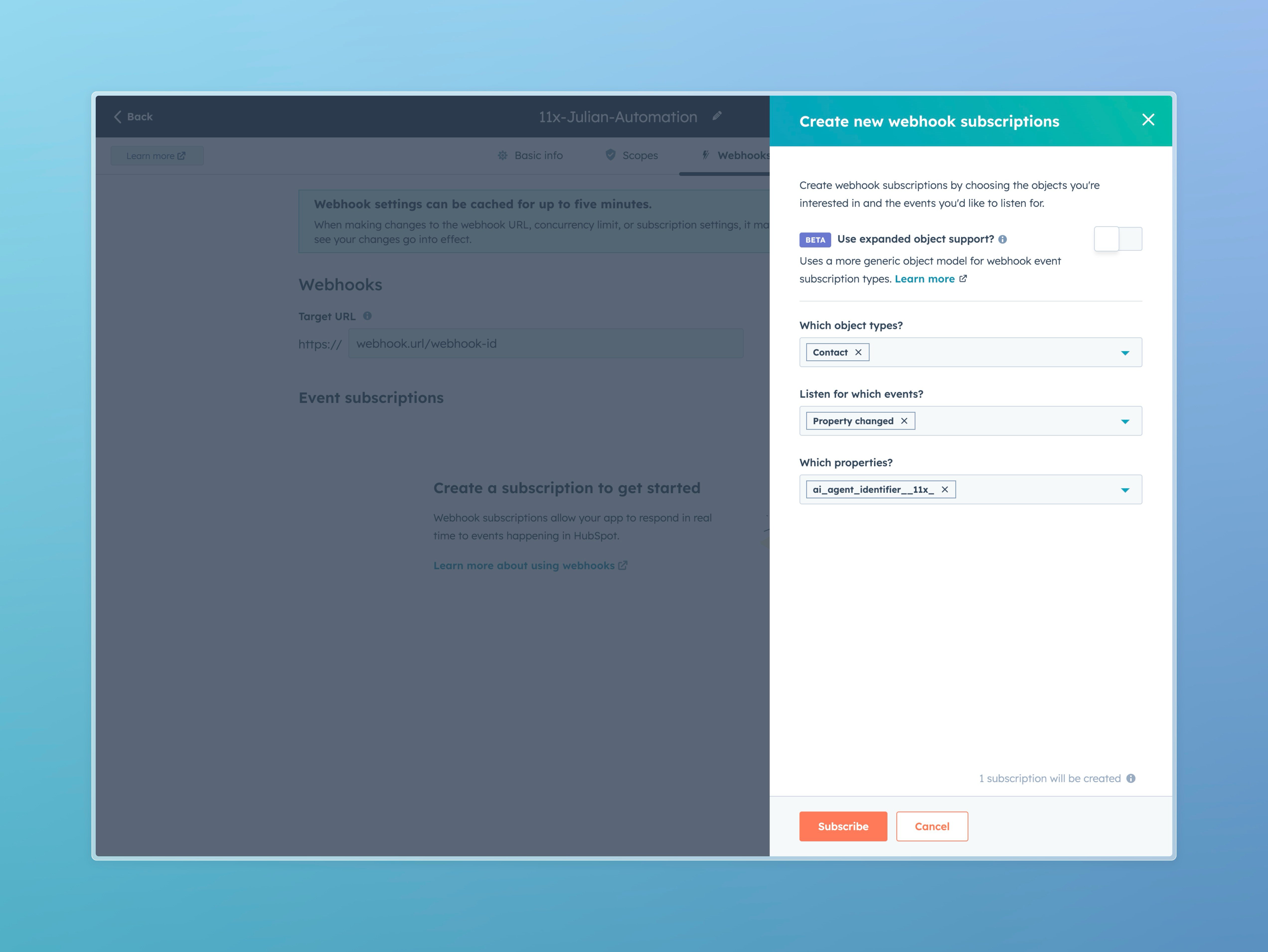
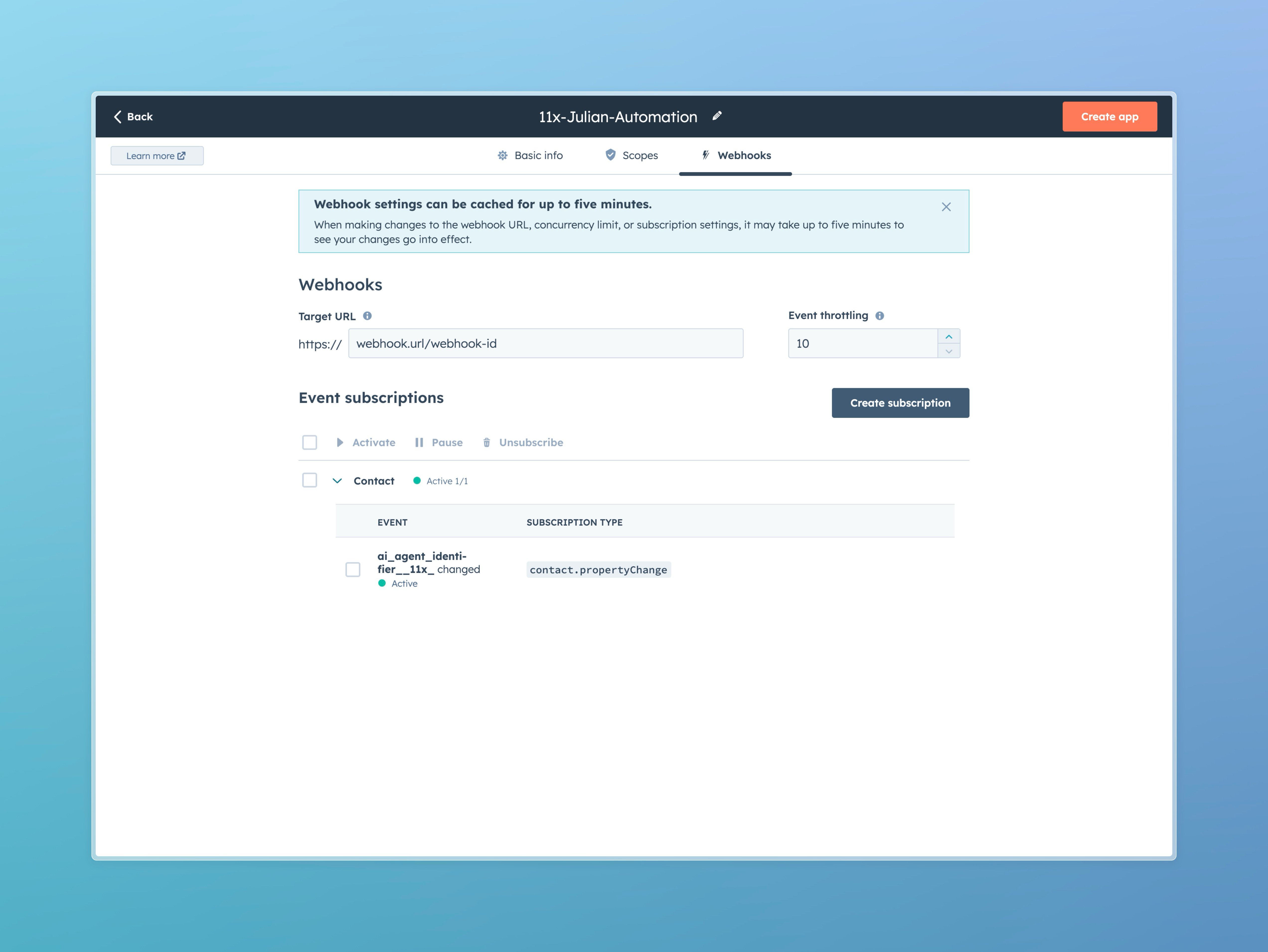
- Create a Contact property changed subscription in the private app.
- Select the same Agent Identifier contact property that you mapped under Schedule in Julian.
- Save the private app and activate the subscription.
The contact-read scope belongs to the HubSpot private app that sends webhook events. It is separate from the Super
Admin role used to connect and configure the integration. Do not paste a private app token into Julian.
Check the connection
- Use a test contact with a phone number. Set its Agent Identifier property to a value used by an agent’s pre-sequence workflow.
- Check Integrations → Scheduling Request Logs in Julian. Confirm that Julian received the contact event and review any rejection reason.
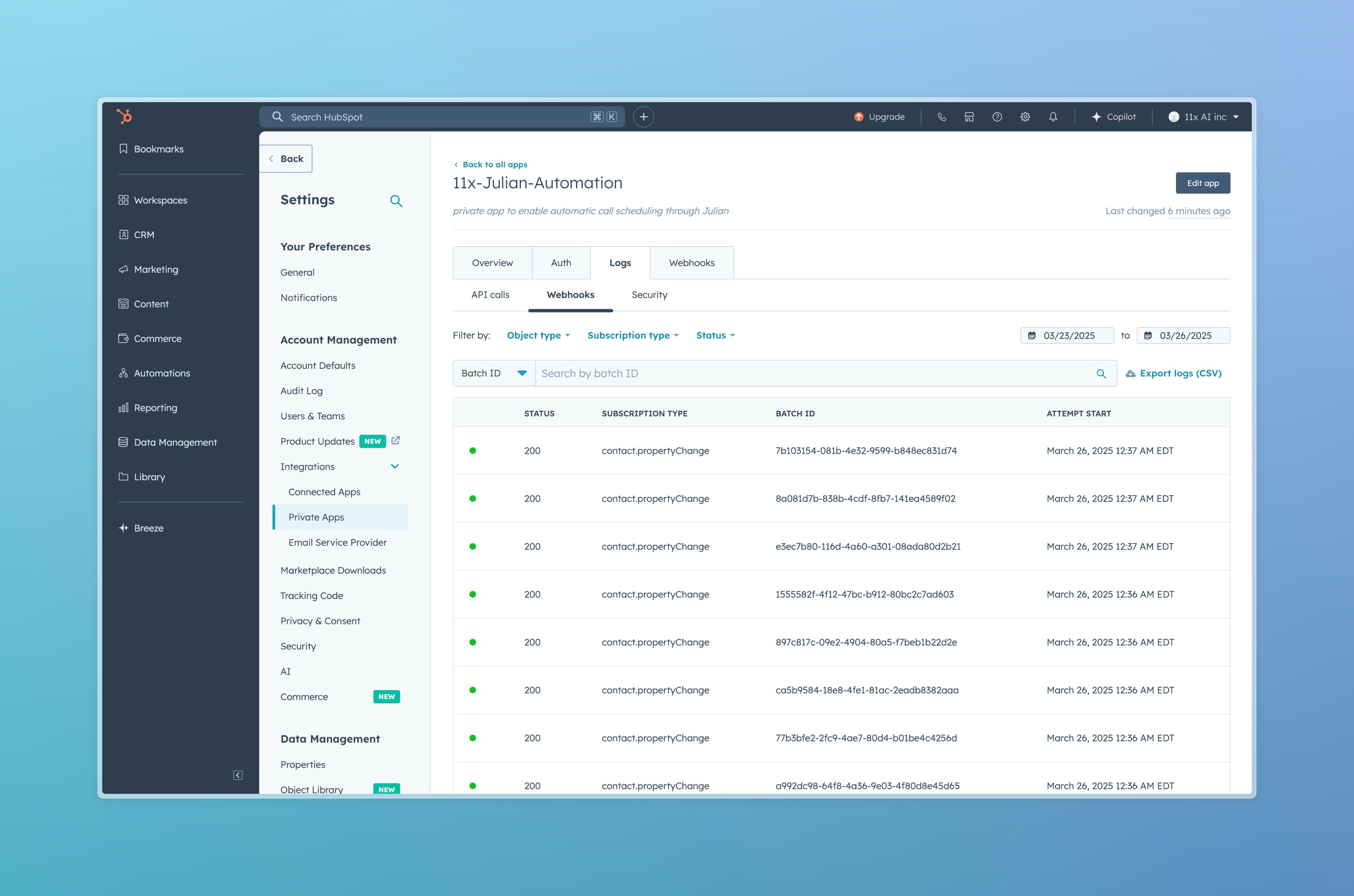
- Check the private app’s webhook event logs in HubSpot. Confirm that HubSpot sent the event to the URL from Julian.
- Check the agent’s workflow run history in Julian to confirm whether the contact entered a sequence.